Graduation lighting: cap shadows, campus portraits and celebrations
Compare formal school portraits, outdoor campus photos and cheerful group lighting. Keep eyes visible under caps and detail in dark gowns.
Caps and gowns change the shadows around a face. Prioritize recognition for a formal record, and balance the face with the campus setting for environmental portraits.
Which light suits which situation?
Placements and angles are editorial starting points informed by lighting principles, not fixed rules. Adjust source size, distance and position for the space and subject. The mood examples do not reveal measured equipment settings or exact output.
Formal school portrait
When to use it: For clearly recording the face and school clothing.
Intended mood: Composed, readable and suitable for a commemorative record.
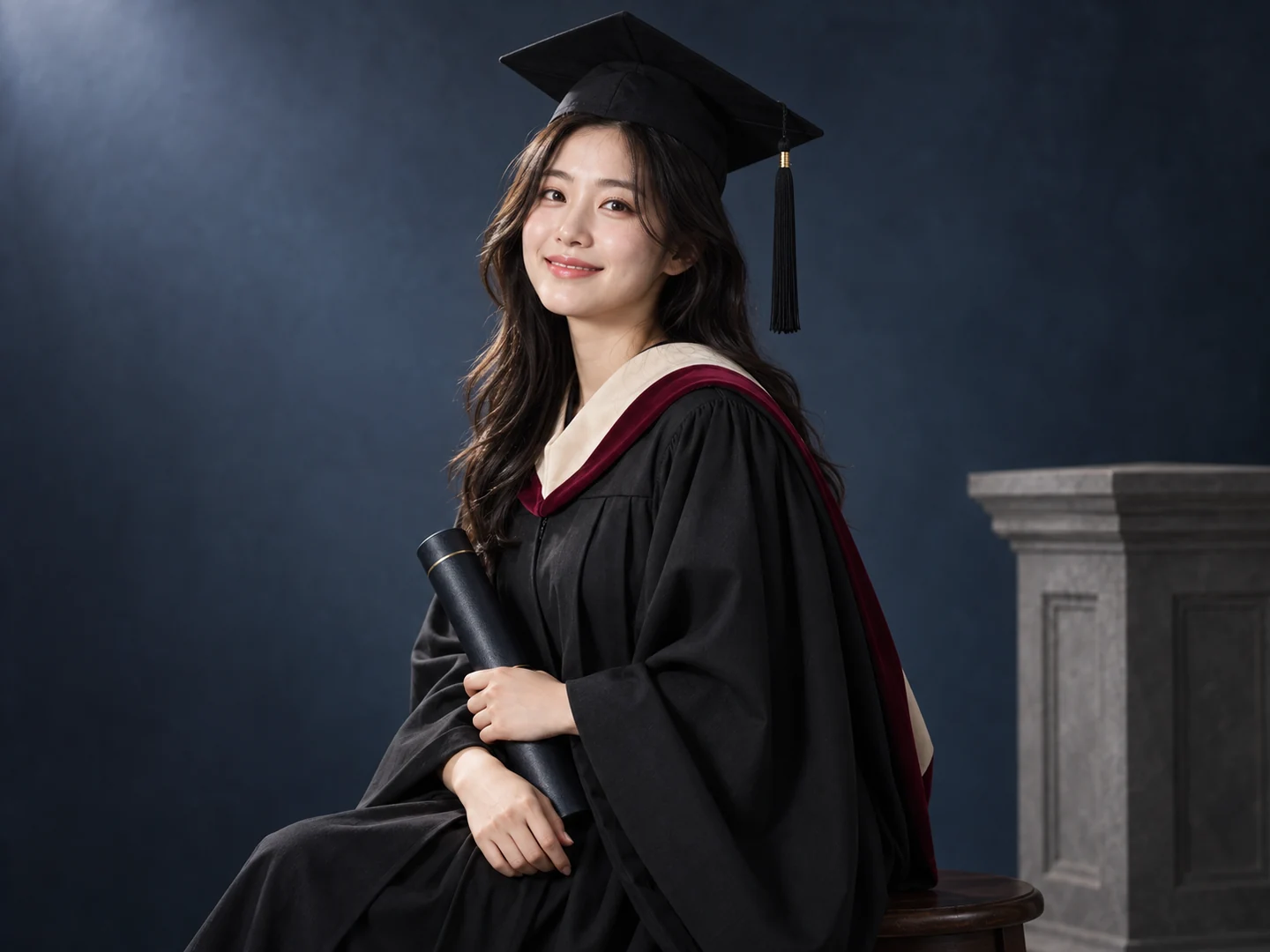
- Key position
- Place a broad diffused key near the camera axis, about 0–30 degrees to one side and slightly above eye level.
- Fill and grouping
- Use a white reflector opposite the key or below the face to gently lift under-eye and chin shadows.
- Distance and backdrop
- Keep a simple backdrop separate from the subject and visually quieter than the face.
- What to inspect
- Adjust exposure after checking both eyes and skin detail. Increasing output alone does not make a source softer.
Context-specific adjustment: Check source height and fill beneath the cap brim.
Natural campus light
When to use it: When the campus itself is part of the memory.
Intended mood: Environmental depth and natural expression feel personal.
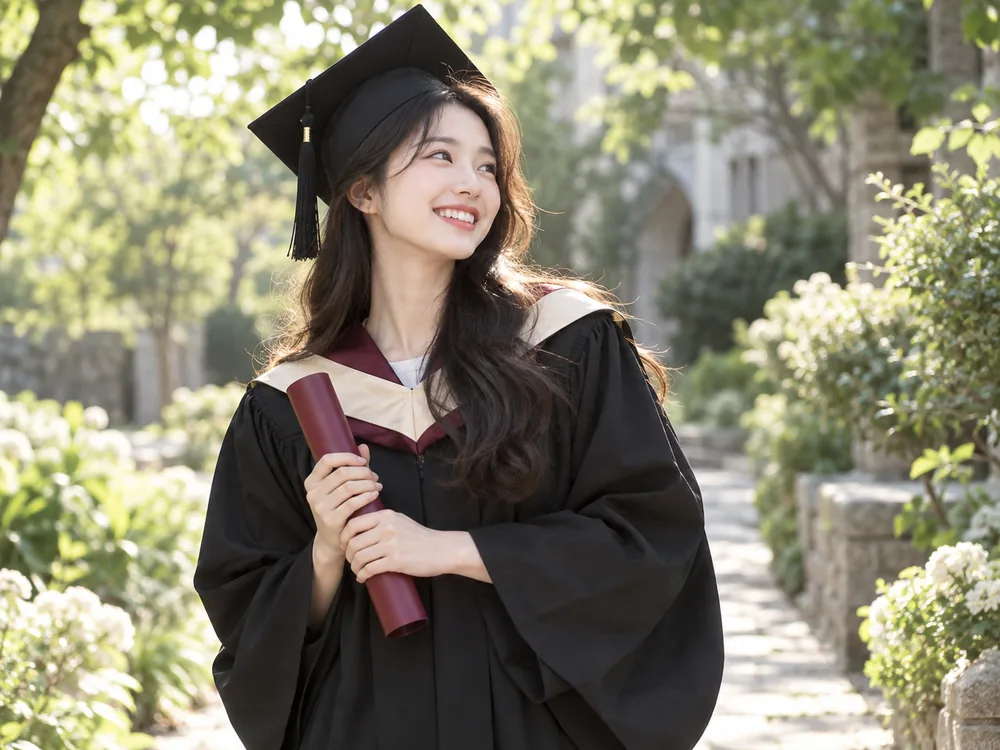
- Key position
- Face the subject toward a broad open sky in bright shade, avoiding patches of direct sun.
- Fill and grouping
- Use gentle white bounce if eyes or chins look dark, without creating glare.
- Distance and backdrop
- Compare the face with the brighter background so it does not become underexposed.
- What to inspect
- Move away from dappled leaf shadows. Overcast light and shade under trees are not interchangeable; inspect the actual face.
Context-specific adjustment: Keep the face readable against a bright building.
Bright graduation celebration
When to use it: For friends celebrating together.
Intended mood: Luminous and energetic group photography.
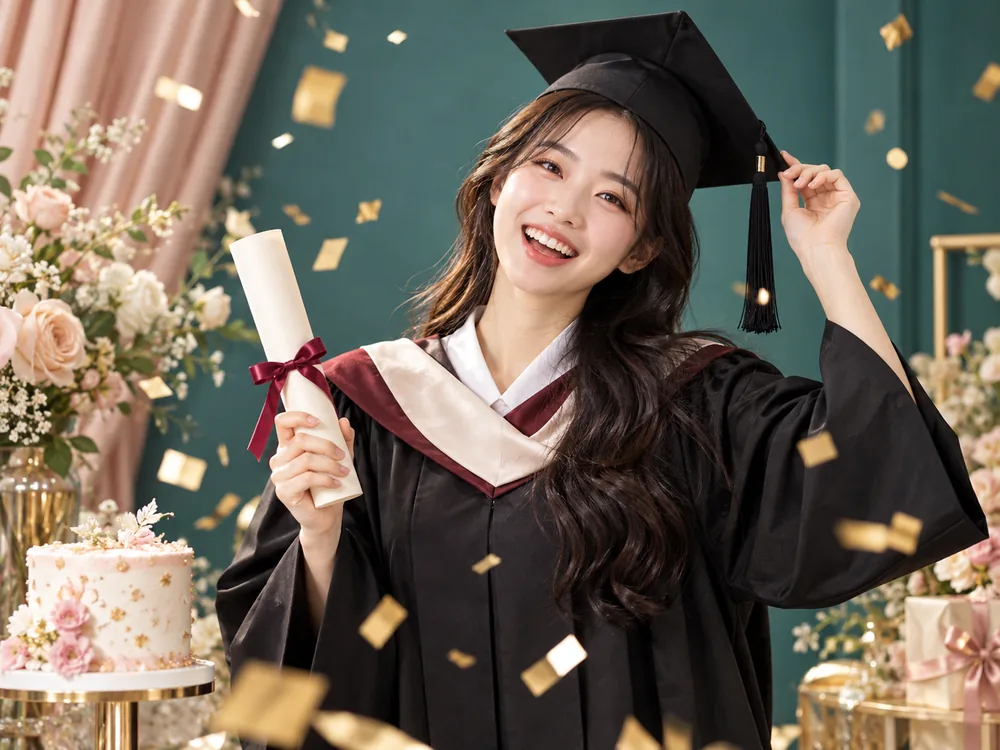
- Key position
- Use a large diffused key near the front at about 20–30 degrees to keep expressions and clothing readable.
- Fill and grouping
- Lift deep under-eye shadows with a reflector or broad subtle fill.
- Distance and backdrop
- Light a pale backdrop separately while preserving detail in white clothes and skin.
- What to inspect
- Watch for colored decorations spilling onto faces. Balance the subject and backdrop separately instead of simply increasing the key.
Context-specific adjustment: Balance every face before adding a stronger celebration effect.
What to check in the result
- Check both eyes under the cap
- Separate dark gowns from the backdrop
- Provide school, degree and year explicitly
Lighting questions for this portrait
What if a graduation cap shades the eyes?
Avoid an excessively high key. Try broad near-frontal light and gentle bounce; increasing power alone can brighten the top of the cap instead of the eyes.
Should entrance portraits include a mortarboard?
Separate entrance and graduation purposes. Choose suitable clothing, bags or books without inventing a school or degree.
Were these examples actually photographed with these setups?
No. They are AI-created mood illustrations and the placements are editorial proposals. They are not measured comparisons of output, color or shadows, or documentary photo sessions of the same person.
Does choosing light in Memory Photo automatically generate an image?
Memory Photo prepares a prompt. You attach the prompt and original photographs directly to an external AI and inspect identity, subject or pet count and the actual lighting expression in the result.
Apply it in Memory Photo
Choose the photo category and subtype, then the location, light and pose. Describe the desired light direction and mood in additional direction. Attach the completed prompt and source photographs directly to your selected AI conversation.
Open the photo studio ↗